Encrypted Volumes with LUKS
If you want to create an encrypted volume attached to your virtual machine, you can use LUKS (Linux Unified Key Setup), which is the standard for Linux hard disk encryption.
Please backup your data before performing the operations described in this page.
Setup
We assume that you have already a VM up and running. Then:
- list the current disks. From the VM's command line issue the following command:
fdisk -l | grep 'Disk /dev'and note down the Disk names (e.g. /dev/vda).
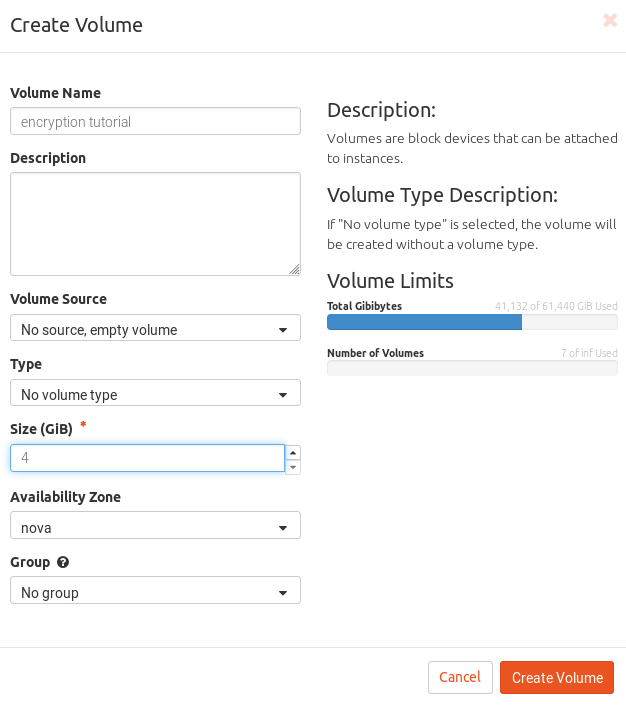
- create a new volume. From dashboard, click on "Volumes" and then on "Create Volume", choose a name and a size and click on "Create Volume".
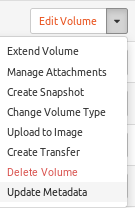
- attach the new volume to the VM. In the volume actions dropdown menu select "Manage Attachments". Select the VM to which the volume will be attached.
- list the current disks. From the VM's command line issue again the following command:
fdisk -l | grep 'Disk /dev'You should find a new disk. This is usually /dev/vdb but we will
refer to it as /dev/vdX hereafter.
- create a new partition on the new disk. These commands will create the partition
/dev/vdX1:
  parted -a optimal -- /dev/vdX mklabel gpt
  parted -a optimal -- /dev/vdX mkpart primary ext4 1MiB -2048s
Check that the mew partition /dev/vdX1 exists with:
fdisk -l | grep '/dev/vdX1'This should output a line with the partition name and size.
- setup LVM:
  pvcreate /dev/vdX1
  vgcreate encvg /dev/vdX1
lvcreate -l100%FREE -n encvol encvg- setup the encrypted partition. Issue the command and follow the instructions on the screen:
cryptsetup -v -s 512 luksFormat /dev/encvg/encvol This will overwrite data on `/dev/encvg/encvol` irrevocably.
Are you sure? (Type uppercase yes): YES
Enter passphrase for /dev/encvg/encvol:
Verify passphrase:
Command successful.
Choose a strong (randomly generated) passphrase and keep it in a
secure place (e.g. use a password manager).- open the encrypted partition, create a filesystem and mount it:
  cryptsetup open --type luks /dev/encvg/encvol ev
  mkfs.ext4 /dev/mapper/ev
  mkdir /mnt/encrypted
  mount /dev/mapper/ev /mnt/encrypted
  df -h
echo "this will be automatically encrypted" > /mnt/encrypted/test.txt- the operations to perform at each VM\'s boot will be:
  cryptsetup open --type luks /dev/encvg/encvol ev
mount /dev/mapper/ev /mnt/encryptedResize
If later you need more space on your encrypted volume, you can perform the following operations:
- unmount the encrypted partition and close it:
  umount /mnt/encrypted
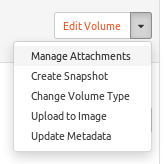
cryptsetup close ev- detach the volume from the VM. From dashboard, click on "Volumes", then in the volume's dropdown menu choose "Manage Attachments", click on "Detach Volume" and confirm
-
resize the volume. Go again on the volume's dropdown menu, choose "Extend Volume" and choose a bigger size for the volume.
-
reattach the volume to the VM. Again from the volume's dropdown menu choose "Manage Attachments" and attach the volume back to the VM.
-
Fix the partition table. From the VM's command line:
parted -a optimal /dev/vdX print Not all of the space available to /dev/vdX appears to be used,
you can fix the GPT to use all of the space (an extra 4194304 blocks)
or continue with the current setting?
Fix/Ignore? Fix
Model: Virtio Block Device (virtblk)
Disk /dev/vdX: 12.9GB
Sector size (logical/physical): 512B/512B
Partition Table: gpt
Disk Flags:
Number Start End Size File system Name Flags
1 1049kB 10.7GB 10.7GB primary- Extend the partition:
  parted -a optimal --script -- /dev/vdX resizepart 1 -2048s
  pvresize /dev/vdX1
  lvextend -l +100%FREE /dev/encvg/encvol
  cryptsetup open --type luks /dev/encvg/encvol ev
  cryptsetup resize ev
  e2fsck -f /dev/mapper/ev
resize2fs /dev/mapper/ev- Mount and check the available space:
  mount /dev/mapper/ev /mnt/encrypted
df -hXFS
For xfs volumes, instead of e2fsck and resize2fs use xfs_repair
and xfs_growfs .e.g.:
  xfs_repair /dev/mapper/ev # instead of e2fsck -f /dev/mapper/ev
  mount /dev/mapper/ev /mnt/myvolume/ # mount it first
  xfs_growfs /dev/mapper/ev # instead of resize2fs /dev/mapper/ev