Creation and Use of Application Credentials
Users can create Application Credentials to allow their applications to authenticate to Keystone.
Users can delegate a subset of their role assignments on a project to an application credential, granting the application the same or restricted authorization to a project. With application credentials, applications authenticate with the application credential ID and a secret string which is not the user's password.
You can use application credentials to access your Openstack project resources either through CLI or python libraries.
Creating Application Credentials using the Openstack Dashboard
Application credentials can be created from the Horizon dashboard:
-
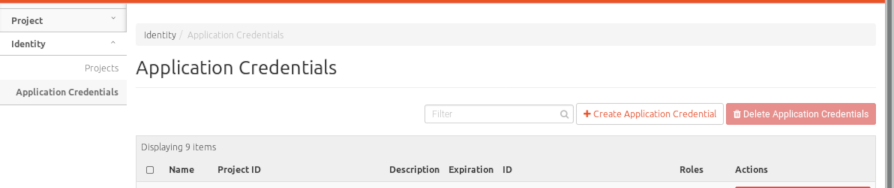
Select Application Credentials from the Identity tab on left side bar:
-
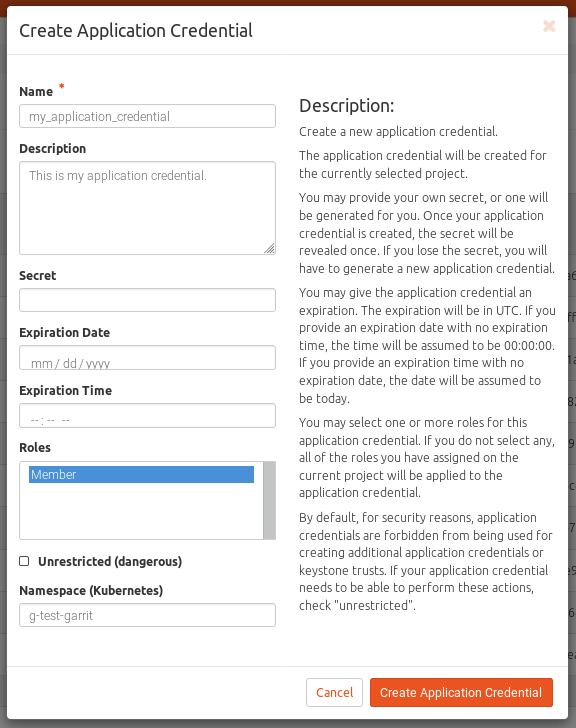
Click the button + Create Application Credential, and fill the form with values of your choice:
-
Now you can download either openrc file or clouds file.
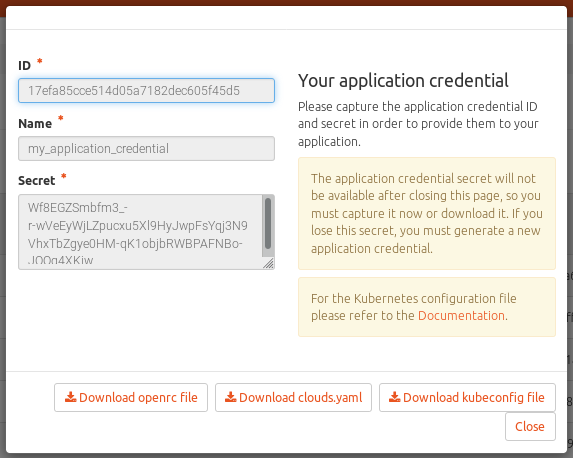
OpenRC File
Download the project-openrc.sh file which contains the generated application credential and save it in ~/.openstack/. Execute project-openrc.sh to load the application credentials in your environment.
source ~/.openstack/project-openrc.shThe file is a bash executable, it sets up the following environment variables
export OS_AUTH_URL=https://keystone.cloud.garr.it:5000/v3
export OS_PROJECT_ID=<project-id>
export OS_PROJECT_NAME=<project-name>
export OS_USER_DOMAIN_NAME="cloudusers"
export OS_PROJECT_DOMAIN_ID=<project-domain>
export OS_USERNAME=<username>
export OS_PASSWORD=<password>
export OS_REGION_NAME="garr-pa1"
export OS_INTERFACE=public
export OS_IDENTITY_API_VERSION=3
Now you can issue openstack commands like this:
openstack server listIf you have multiple projects you can download the project-openrc.sh file for each one of them and execute them before accessing the project's resources through the openstack CLI.
Clouds File
Another way to authenticate to the Openstack CLI is by saving the clouds file in ~/.config/openstack/clouds.yaml. The file has the following structure:
clouds:

  openstack:
    auth:
      auth_url: https://keystone.cloud.garr.it:5000/v3
      application_credential_id: <credential-id>
      application_credential_secret: <credential-secret>
    region_name: "garr-pa1"
    interface: "public"
    identity_api_version: 3
    auth_type: "v3applicationcredential"
You can use these credentials to access your openstack project by adding --os-cloud option to the openstack command.
openstack --os-cloud openstack server listManaging multiple projects
If you have multiple projects over multiple regions, you must switch to each project from the Openstack Dashboard and create a different application credentials instance for each one of them. Download the clouds files and create a single clouds.yaml file.
clouds:

  project1:
    auth:
      auth_url: https://keystone.cloud.garr.it:5000/v3
      application_credential_id: <project1-application-credential-id>
      application_credential_secret: <project1-application-credential-secret>
    region_name: "garr-pa1"
    interface: "public"
    identity_api_version: 3
    auth_type: "v3applicationcredential"

  project2:
      auth:
        auth_url: https://keystone.cloud.garr.it:5000/v3
        application_credential_id: <project2-application-credential-id>
        application_credential_secret: <project2-application-credential-secret>
      region_name: "garr-ct1"
      interface: "public"
      identity_api_version: 3
      auth_type: "v3applicationcredential"
Creating Application Credentials using the Openstack CLI
Users who have access to the OpenStack Client (see below) may create Application Credentials with the following command:
$ openstack application credential create --secret <YOUR SECRET> --role <ROLE> --<NAME>You can also list, show and delete Application Credentials respectively with the following commands:
$ openstack application credential list
$ openstack application credential show <APPLICATION CREDENTIAL ID/NAME>
$ openstack application credential delete <APPLICATION CREDENTIAL ID/NAME>